A Comprehensive Guide to PADD: Your Personal Aggregation Display Dashboard
If you spend any time in the IndieWeb community, you've probably heard of feed readers; tools that let you follow blogs and websites without being beholden to any single platform. PADD (Personal Aggregation Display Dashboard) is one such reader, built by me with the IndieWeb philosophy at its core. I've been using it daily and wanted to walk through everything it offers.
What Is PADD?
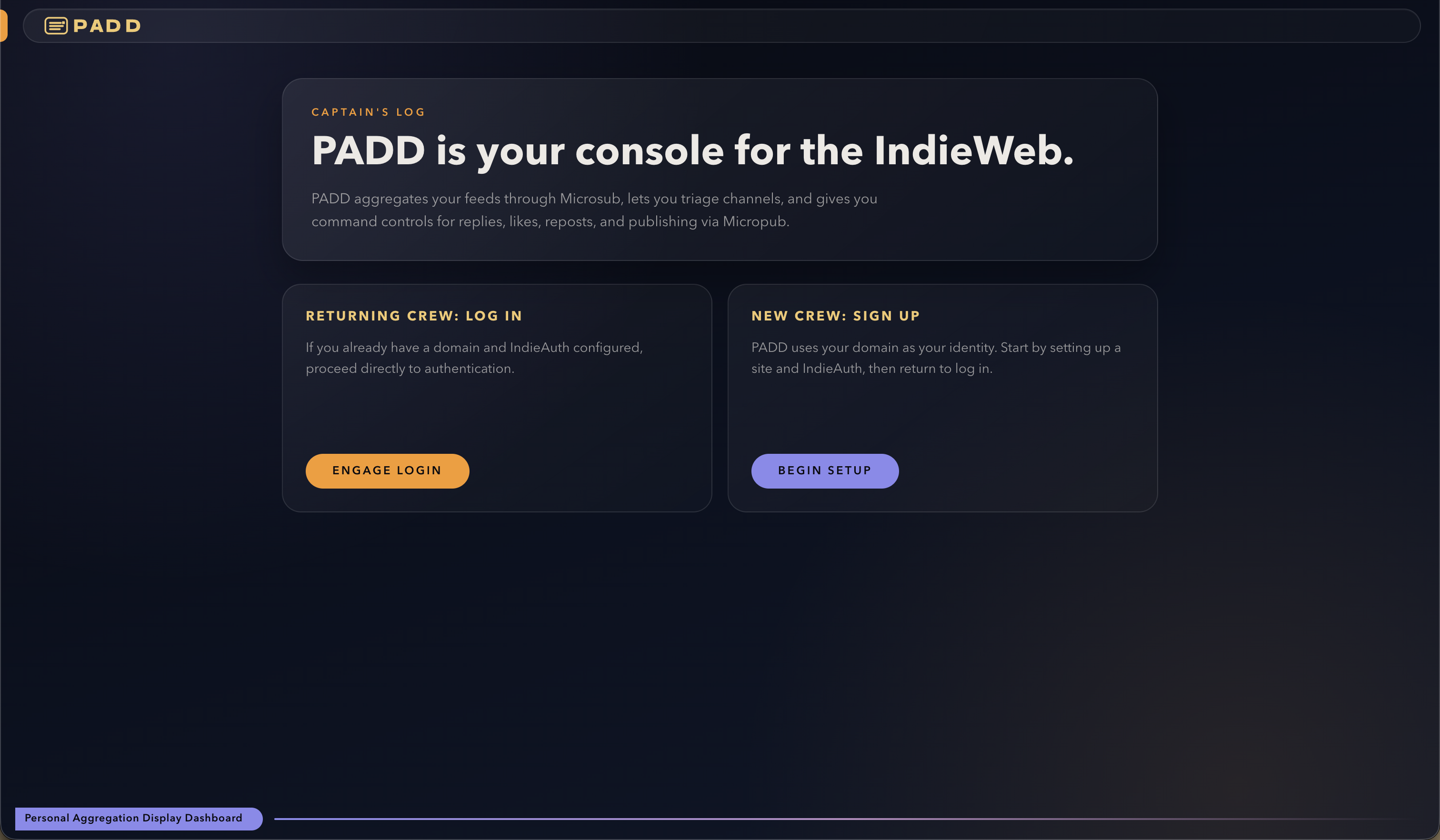
PADD is a Microsub-compatible feed reader and social reader. The name says it all: it's a personal aggregation tool. A dashboard for pulling in content from across the web and interacting with it, all from one place. It connects to a Microsub server on the backend and presents a clean, dark-themed UI on the frontend.
Channels: Organizing Your Feeds
The backbone of PADD is the channel system. Channels are curated groupings of feeds. Think of them like folders, but smarter. In the left sidebar, you'll find your channels listed (e.g., IndieWeb, News, Bloggers, Family). Each channel aggregates posts from all the feeds assigned to it.
Creating and Managing Channels
Clicking + Add Channel at the bottom of the sidebar opens a quick input to name and create a new channel instantly. Once a channel exists, hovering over it reveals a "..." (channel actions) menu with four options:
- Mark as Read: marks all entries in the channel as read in one click
- Rename: lets you give the channel a new name
- Delete: removes the channel entirely (with a confirmation dialog to prevent accidents)
- Manage Feeds: the most powerful option, opening a feed management panel
Manage Feeds
The Manage Feeds panel shows all the URLs currently subscribed to in that channel. You can remove any feed with a single click of its "×" button. There's also a search bar at the top! You can type or paste any feed URL and hit Search to add it to the channel. PADD supports RSS, Atom, JSON Feed, and h-feed formats.
The Timeline: Reading Your Feeds
Clicking a channel opens its timeline. The timeline is a reverse-chronological stream of posts from all feeds in that channel. The timeline is the heart of the PADD experience.
All vs. Unread
At the top of the timeline, two toggle buttons let you switch between All (every post) and Unread (only posts you haven't read yet). This is essential for keeping up with high-volume feeds without losing your place.
Entry Cards
Each post appears as an entry card showing:
- Author avatar and name: clickable to see more from that author
- Timestamp: shown as a relative time (e.g., "11m ago")
- Read status: a "Read" indicator appears on entries you've marked as read
- Post title and content: articles show a headline; notes and short-form posts show the text directly
- Post type context: PADD understands IndieWeb post types like check-ins (with location/map data), listens, reposts, replies, and more. These are labeled contextually (e.g., "Checked in", "Listened to", "In reply to")
- Embedded maps: check-in posts display latitude/longitude and an interactive dark-themed map
- Images: photo posts and articles with images render them inline
Expand / Collapse
Long posts are truncated by default with an Expand button. Clicking it reveals the full content inline. A Collapse button appears to fold it back. You can also configure PADD to expand all content by default in Settings.
Removing Entries
Each entry has an × (Remove entry) button in the top-right corner to dismiss it from your timeline without marking the whole channel as read.
Author Actions
Clicking the author name on any entry reveals an Author Actions menu with options to Mute or Block an author. Muting hides their future posts; blocking is more permanent. You can also unmute a previously muted author.
Interactions: Engaging With Posts
PADD is a social reader! You can interact with posts directly without leaving the app. Each entry card has four action buttons:
- Like: sends a Micropub request to your site to create a like post
- Repost: reposts the entry to your own site
- Reply: expands an inline text box where you can write and send a reply directly
- Harvest: opens gardn.website to bookmark the post for later. This button can be toggled on or off in Settings.
Once you've interacted with a post, the relevant button updates to reflect your action (e.g., it will show "Liked — view on your site" as a link back to your own post).
Composing New Posts
The New Post button (prominently placed in the bottom-left sidebar and at the bottom of any timeline) opens PADD's built-in post composer. This is a Micropub client; posts you write here are published directly to your own website.
The composer includes:
- Title (optional): leave it blank for a short "note"-style post; add a title for a full blog article
- Content editor: a Markdown editor with a toolbar for Bold, Italic, Heading, Quote, Generic List, Numbered List, Link, Image insertion, and a Toggle Preview button to see rendered output before publishing
- Character count: displayed below the editor so you always know your post length
- Tags: a tag input field where you can type a tag and press Enter or comma to add it
- Photos: an Add Photo button to attach images to your post
- Syndicate To: checkboxes to cross-post via Bridgy Publish to platforms like Bluesky and Mastodon
- Include Location: a checkbox to attach your current location to the post
- Save Draft: saves the post as a draft without publishing (drafts appear in the left sidebar under "Drafts")
- Publish: publishes the post immediately to your site via Micropub
Discover: See What's Trending
The Discover page (accessible from the top-right user menu) shows posts from across the network ranked by engagement. You can toggle between Hot (most interacted-with) and New (most recent). Each entry shows like, repost, and reply counts at a glance, letting you find interesting content outside your existing subscriptions.
Alerts / Notifications
The Alerts button in the top navigation bar displays a notification panel with Recent Notifications. Activities like replies to your posts, likes, and other webmentions received on your site. A View All button lets you see the complete notification history.
Settings
The Settings page gives you fine-grained control over your PADD experience:
- Default Filter: choose whether channels open to "All" posts or "Unread" only by default
- Mark as Read behavior: three options:
- Explicit: only mark as read when you click the Read button
- Interaction: mark as read when you like, reply, repost, or expand a post
- Scroll Past: automatically mark posts as read as you scroll past them
- Expand Content by Default: toggle to have all post content expanded automatically (Off by default)
- Infinite Scroll: toggle to load more posts as you scroll to the bottom (On by default)
- Harvest Button (Gardn): toggle the Harvest/bookmark button on or off across all entries
- Subscriptions: export your feeds as an OPML file or import an OPML file to bulk-add subscriptions
- Account: export all your data, or delete your account entirely
The IndieWeb Foundation
What makes PADD special is how deeply it's rooted in IndieWeb principles. Every interaction (likes, replies, reposts) is sent as a Micropub request back to your own site. Posts are published via Micropub to your own domain. Feeds are subscribed via Microsub. You own your data, and the Export Data option in Settings ensures you can always take it with you.
PADD is a reader that treats the open web as the social network, and that's exactly what makes it worth using.
Written and published using PADD itself.
Comments
No comments yet.